
Action links enable businesses to showcase specific URLs on their online profiles, allowing customers to easily take actions such as scheduling appointments, making reservations, or ordering food. These links are currently compatible with platforms including Google, Apple Business Connect, Bing, TomTom and Localistico Store Pages.
How to add action links to Localistico
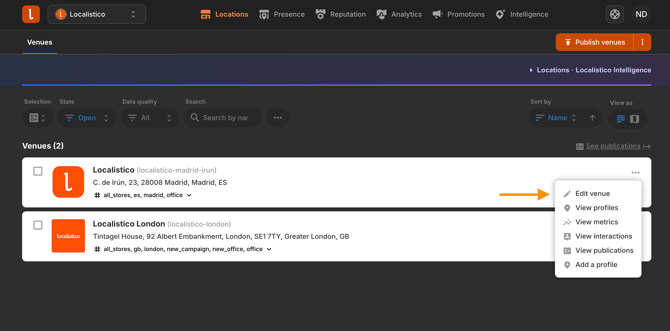
1. Navigate to the Venues tab and open the venue you want to edit.
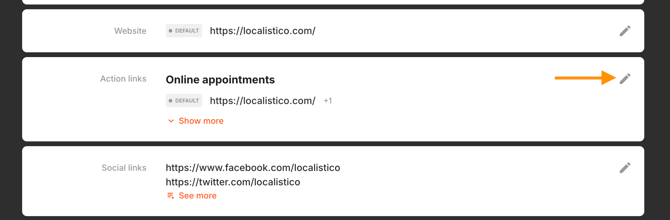
2. Scroll down to the action links section and click on edit.
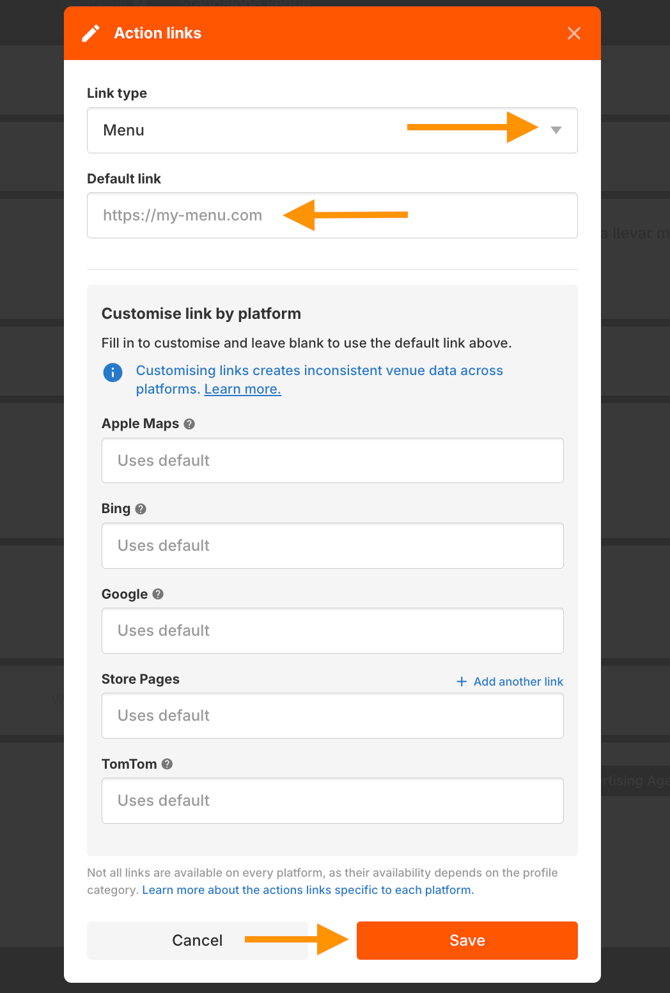
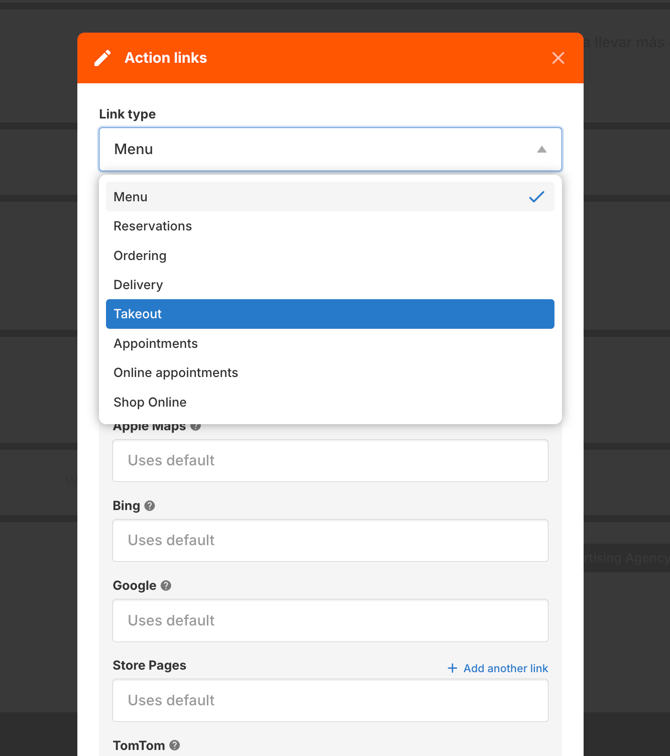
3. Select the link type and add the default action link for the business, then click Save. This default link will be published across all available platforms. To customise a link by platform, use the fields below and follow these instructions.
If all your stores have action links, you may also add the link in bulk by:
1. Exporting the location data into Excel from Localistico.
2. Adding the appointment URL in the column appointment_url.
3. Uploading the file back to Localistico.
After adding the appointment URL, don't forget to publish.
Important considerations
Category availability: The availability of action links varies based on the primary business category. For instance, the Menu link is exclusively available for venues categorized as restaurants or cafés.
Platform link limits: The number of links published depends on the platform and link type. If multiple action links of the same type are added:
-
Apple Business Connect, Bing, TomTom, and Google (Menu links only): Only the first link will be published.
-
Google (other link types) and Localistico Store Pages: All links will be published.
A different action link can also be published on a specific platform. See How to customise action links by platform? to learn how it works.