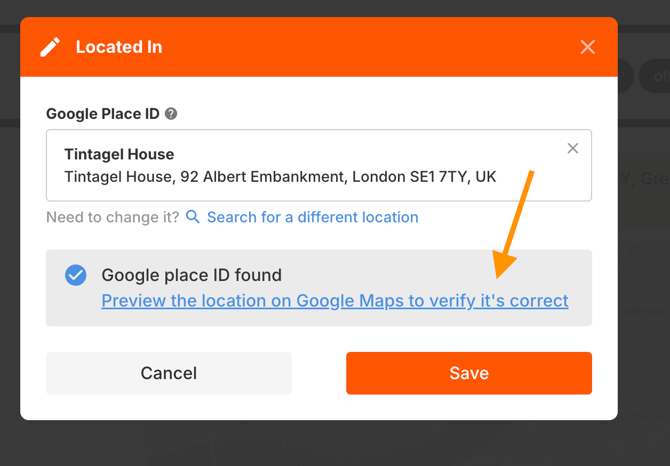
How to add a parent location manually:
By default, all venues are marked as standalone. If your venue is located inside another location (e.g., a mall or airport), follow these steps:
1. Go to the Venues tab → Details and scroll down to the Located In field.
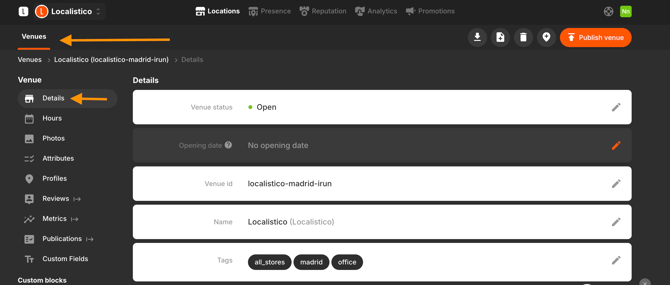
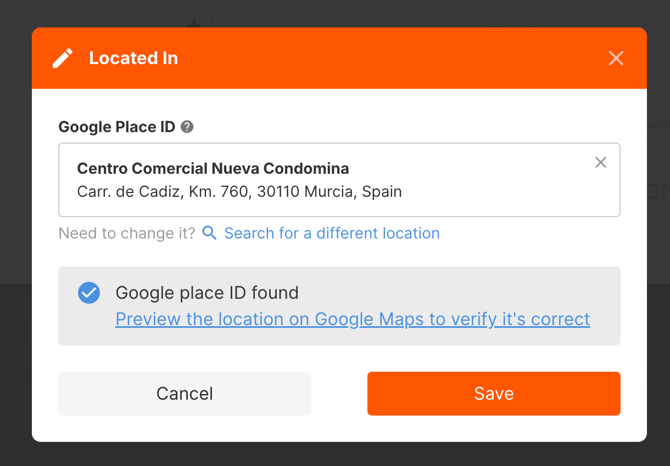
2. Click the Edit button and enter the Google Place ID of the parent location.
-
The Place ID is an internal ID used by Google to define the location.
-
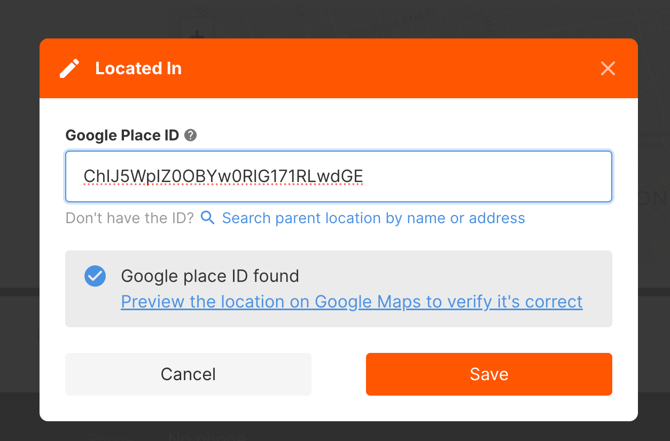
Example of a Place ID:
ChIJ5WpIZ0OBYw0RIG171RLwdGE -
If you don’t know the Place ID, you can look it up on Google Developers.

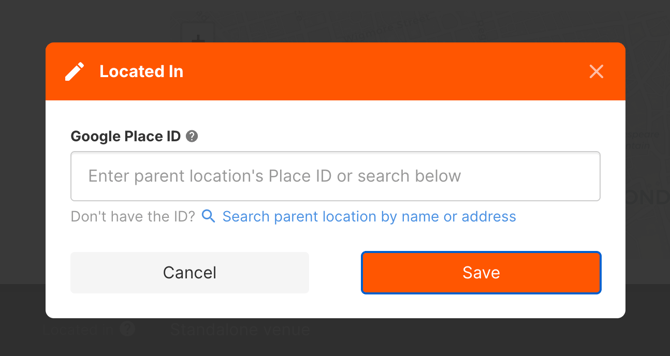

If you don’t have the Place ID, you can search for the parent location by name or address. Once selected, the system will automatically populate the Place ID.

How to add parent locations in bulk:
You can also add parent locations in bulk using the importer:
1. Export all our venues and include the Google Place ID for each parent location in your file.
2. Use the field google_located_in_service_id in the exported file.
Before publishing, make sure the parent location is correct by clicking the Preview button.