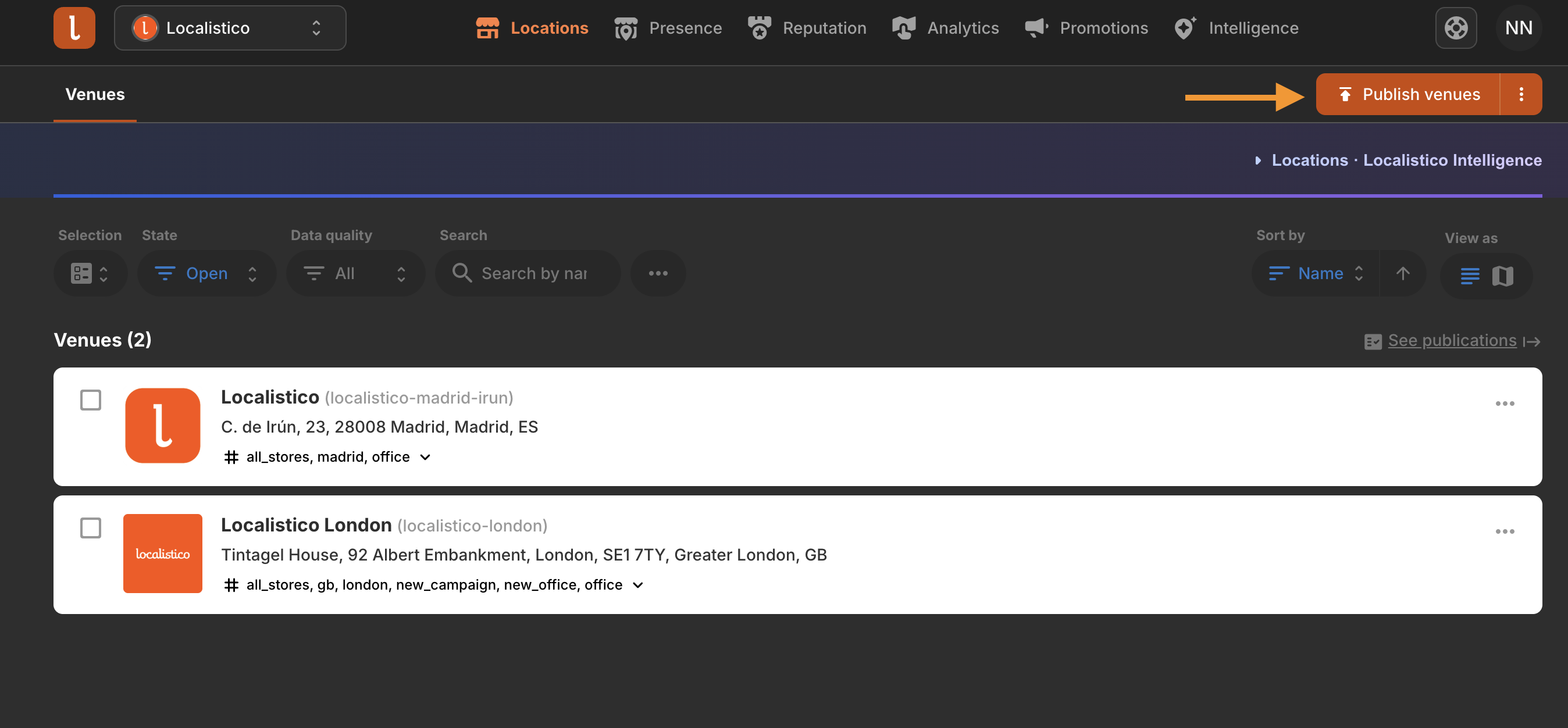
Please note that Google products is a premium feature and might not be included in your subscription. Contact your Customer Success Manager or support@localistico.com to activate this feature.
⚠️ Important Note on Publication: Google does not currently provide a public API for publishing products. Therefore, the publication process involves a partly-manual workflow handled by the Localistico team. Updates are not instant and may take several days to appear on Google.
How it works
It is possible to add as many products as a venue requires. Once created, products can easily be edited, reordered, or deleted at any time.
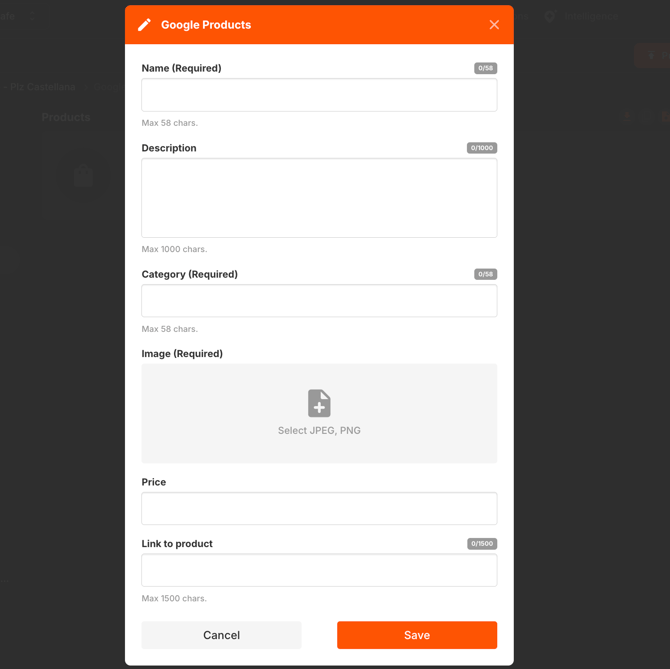
A product supports the following fields:
-
Name (required)
-
Description (Optional)
-
Category (required)
-
Price (Optional)
-
Image (required)
-
Link (Optional — a direct URL to the product page)
1. Adding products manually
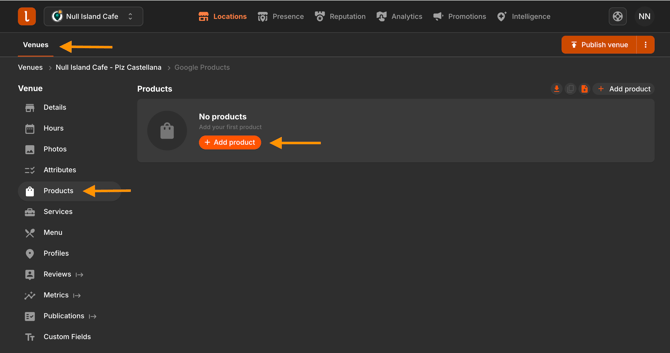
Products can be managed directly within the specific venue's tab. Navigate to the Venues tab and select the desired venue. Scroll to the Products section and click the Add product button. Add the product name, category and image (required fields) and a description, price and product link (optional fields).
2. Bulk managing products
When products have been filled in for one venue and need to be replicated across other locations, there is no need to re-enter them manually one by one.
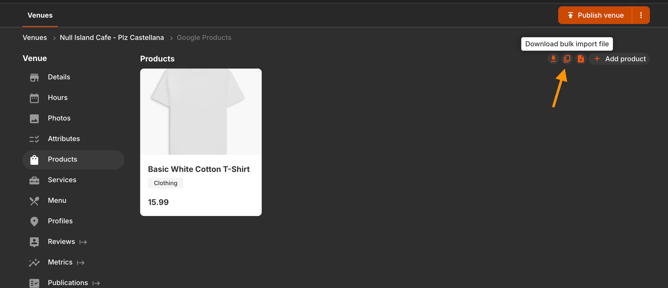
The "Download bulk import file" button, located in the block's header next to the Export button, generates a CSV file with the venue's products pre-filled for every chosen venue. This file is immediately ready to be uploaded through the regular bulk import process.
Step 1: Export the template
-
Go to the Products of the venue where you have manually added the products.
-
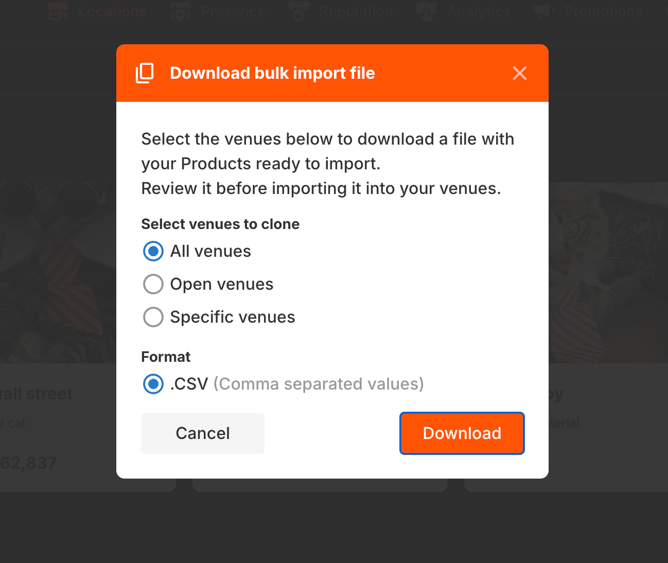
Click on "Download bulk import file" to generate the template and clone the existing products to other venues.
-
This file can be generated to automatically include existing products for all venues, only open venues, or specific venues (filtered by venue name or tags).
Step 2: Upload the downloaded file and clone products to other venues
-
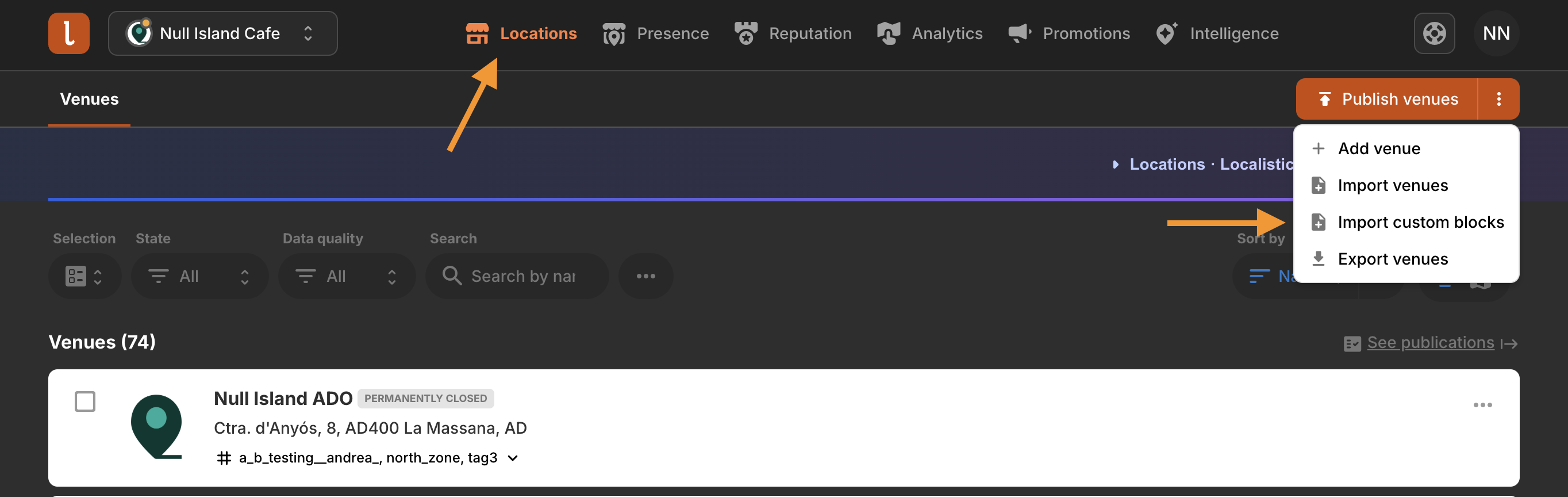
Once the CSV file is downloaded you can edit the file and add more products or directly import it by navigating to the main Locations page.
-
Click on Import custom blocks.
-
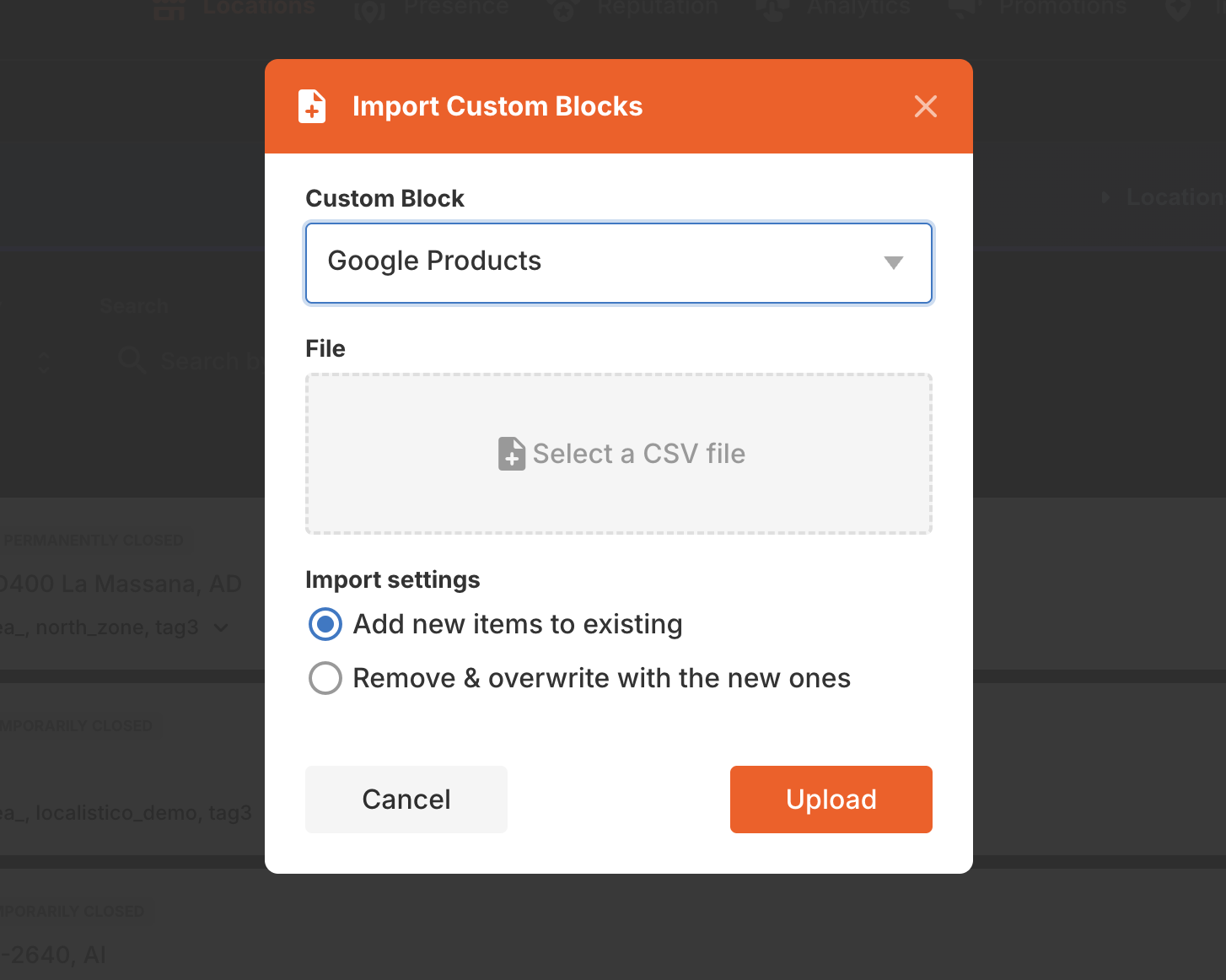
In the configuration window, select Google products as the custom block type and select Add new items to existing or Remove & overwrite with the new ones as the import option.
-
Choose the file to be imported and click the Upload button.
3. Publishing to Google
Once products are added manually or uploaded via CSV, they must be published to become live. Click the Publish button to send the newly added products to your Google Business Profile.
⚠️ The publication of products is not instant and can take a few days. Once the Localistico team completes the manual processing and your products are live on Google, you will receive an email notification.