
1. Removing photos uploaded via Localistico from Google Business Profile
How does it work
1. Go to the Venues tab, navigate to the Photos section, and select the photo you want to delete or replace.
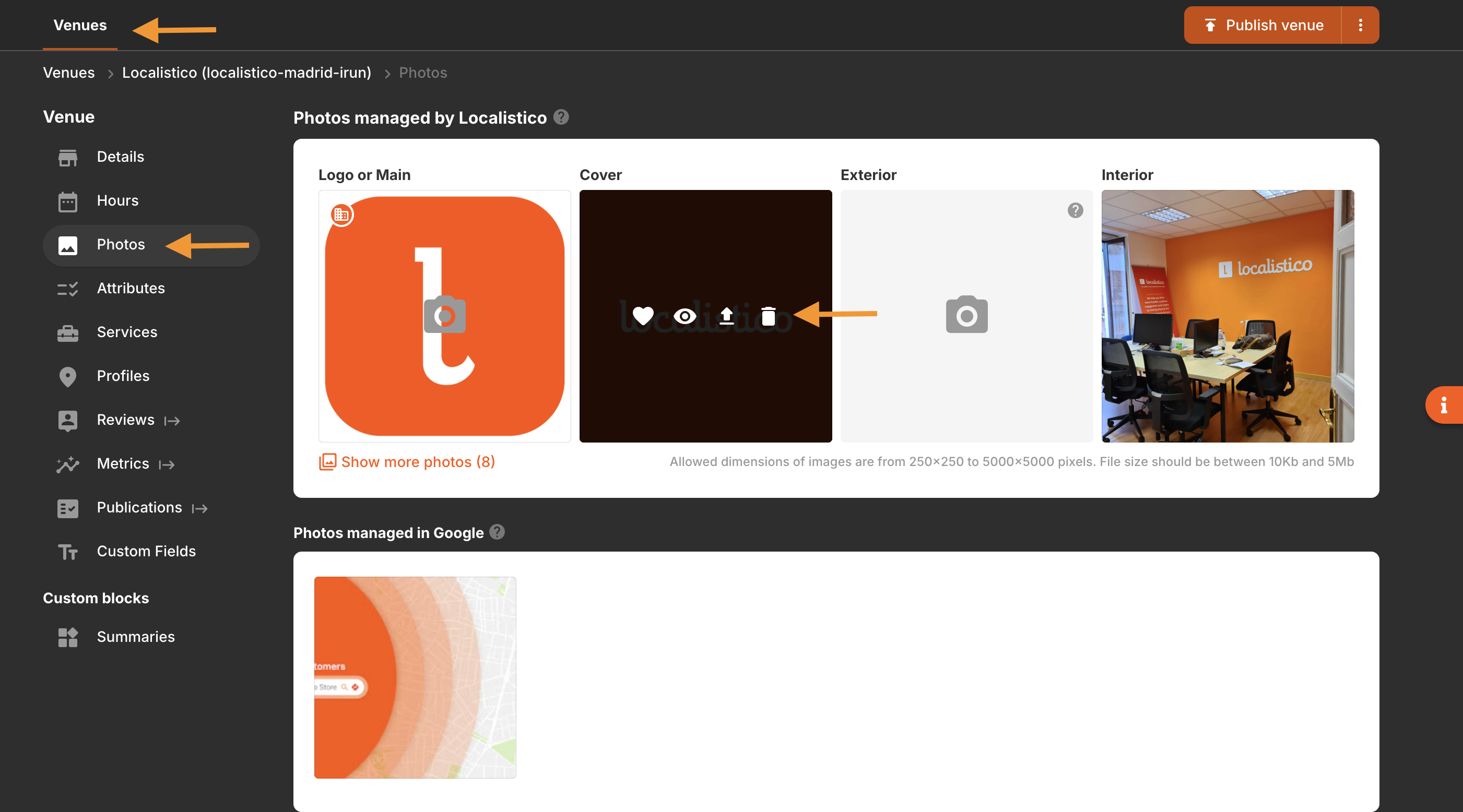
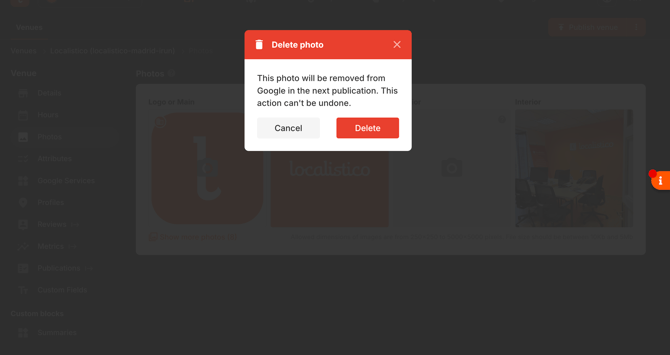
2. To delete a photo: Click the "Delete" button. After that, make sure to click the "Publish" button to trigger the update and completely remove the photo from Google Business Profile.
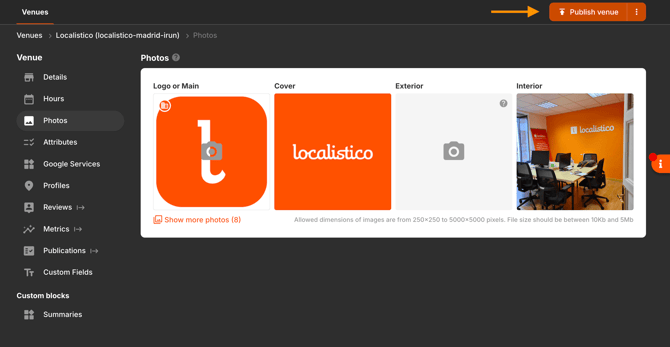
3. To replace a photo: Click the "Replace" button and upload your new image. Once you publish the changes, Localistico will automatically remove the old photo from Google Business Profile and publish the new one.
2. Removing photos uploaded to Google Business Profile
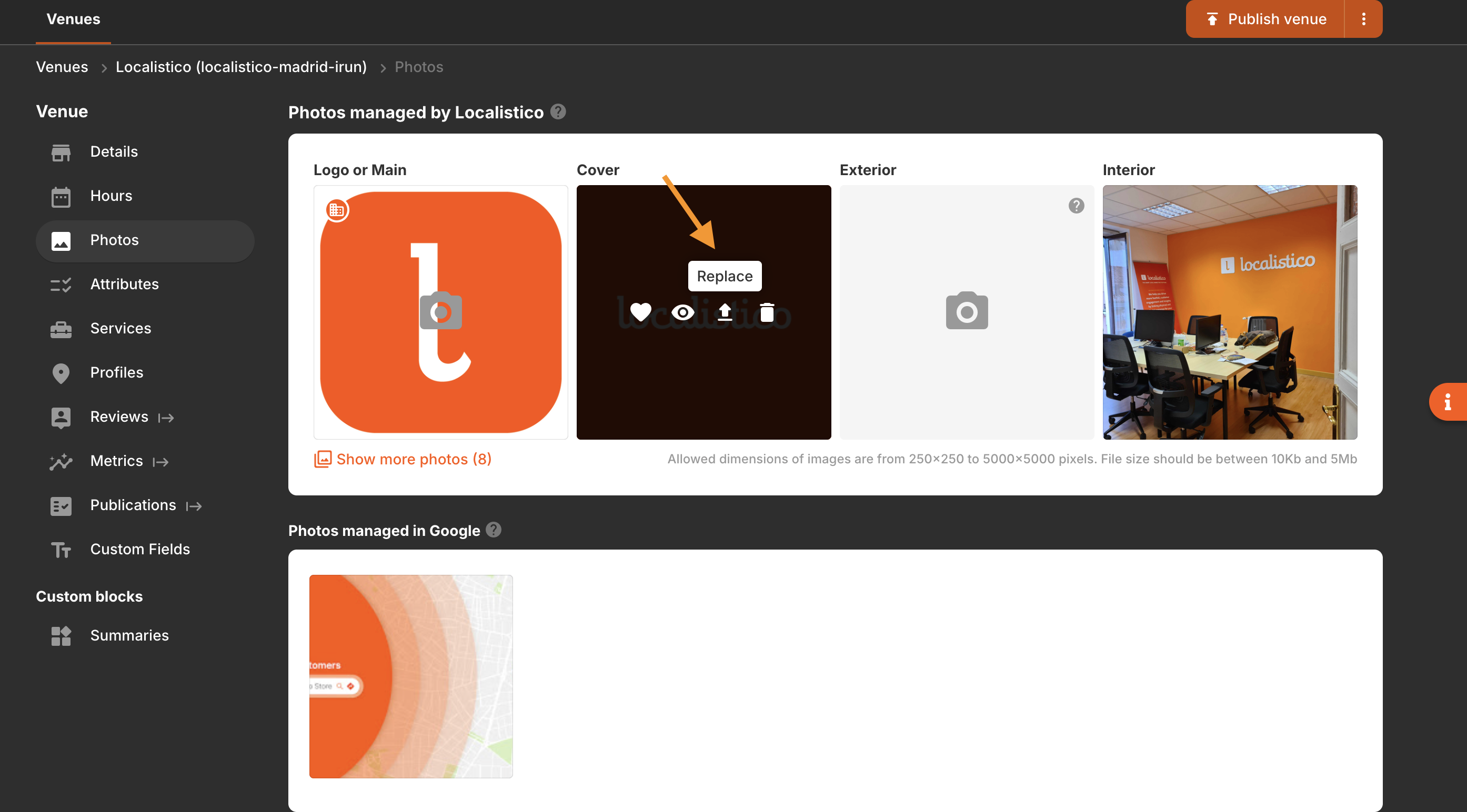
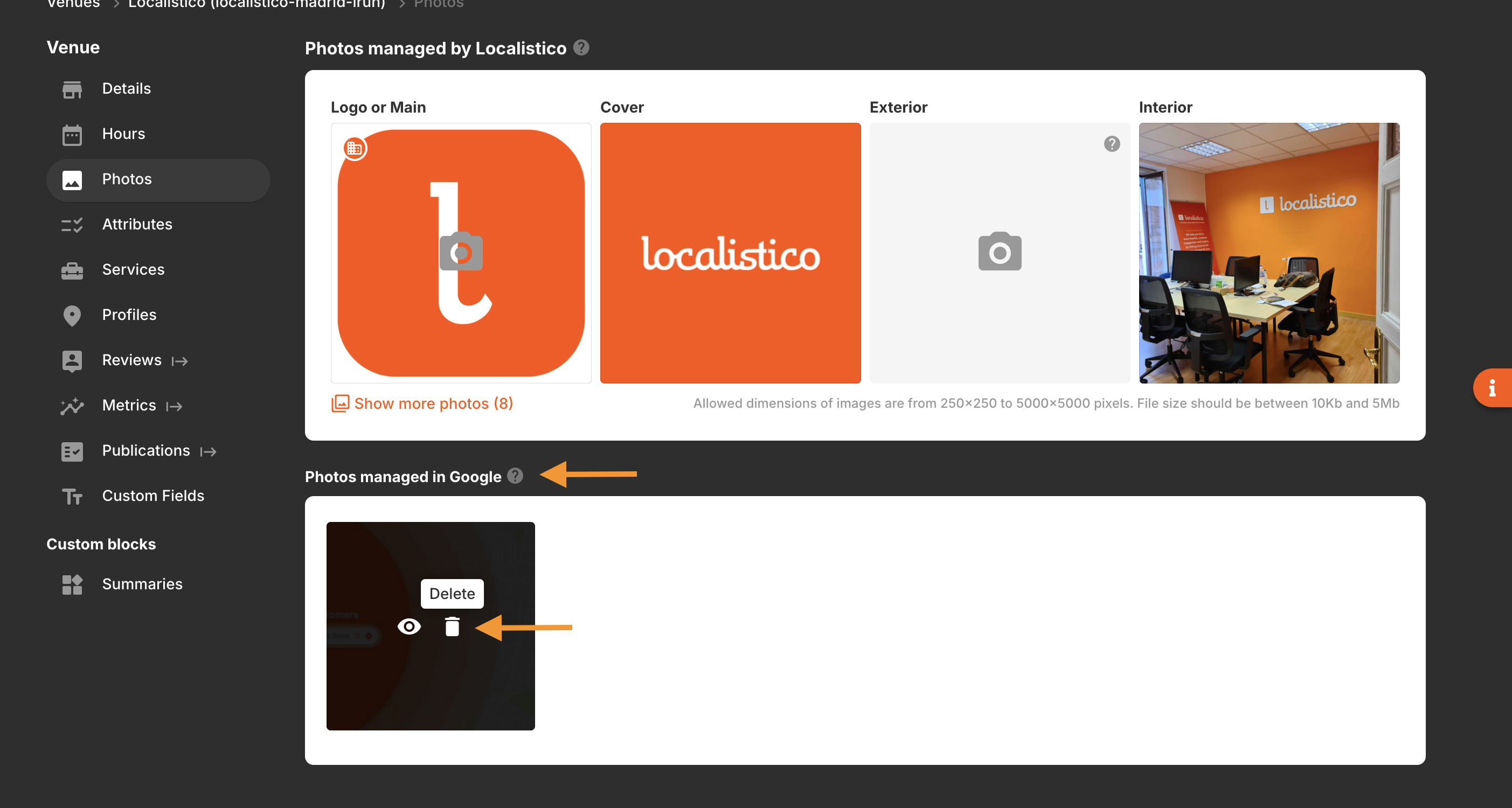
Previously, photos uploaded inside Google Business Profile (outside of Localistico) had to be deleted manually by logging into the Google dashboard. With this new feature, Localistico automatically syncs these photos into Localistico so they can be managed in one place.
How It Works
- Automatic Sync: Localistico detects and extracts photos that exist directly on your Google Business Profiles.
- Single Dashboard Management: Once extracted, these images appear in the Localistico photo gallery. They can be deleted from Localistico without needing to log into Google Business Profile.
ℹ️ Note: This feature is currently available only for photos uploaded directly to Google Business Profile.
⚠️ Important Note: Please keep in mind that both options only remove the photo from your Google Business Profile dashboard. The permanent deletion and visual removal from the Google Maps/Search profile depends 100% on Google and its internal sync times.